
Mejor app de teleprompter gratis para iPad (2026)
Contenido
Respuesta corta: el iPad es uno de los mejores teleprompters que ya tienes. Su pantalla grande se lee bien desde un paso de distancia, así que tus ojos se quedan cerca del objetivo. De forma gratuita, VoiceScroll te da desplazamiento controlado por voz de forma nativa en iPadOS, mientras que CuePrompter y Teleprompter.com funcionan en Safari sin instalar nada. A continuación: las apps que vale la pena usar en iPad, y tres formas de colocar uno detrás de tu cámara.
Un iPad es la pantalla de teleprompter que la mayoría de los creadores ya tienen. Su pantalla es lo bastante grande como para leerla con comodidad desde uno o dos pasos de distancia, lo que mantiene tu línea de mirada cerca de la cámara y saca el guion de tu teléfono. Esta guía repasa las apps de teleprompter que vale la pena usar en iPad en 2026, empezando por las gratis, y cómo colocar físicamente el iPad para que no parezca que estás leyendo.
Por qué el iPad es un buen teleprompter
Lo que hace que un teleprompter funcione es la distancia de lectura. En un teléfono, el texto es pequeño, así que tienes que sujetarlo cerca, y cuanto más cerca está el guion, más obvio resulta que tus ojos se mueven rápido sobre él. La pantalla más grande del iPad te permite alejarlo hacia la cámara y subir el tamaño de la fuente, de modo que una mirada se lea como una mirada, no como una lectura. Además, se sostiene con estabilidad en un soporte, y la mayoría de la gente ya tiene uno, así que es la mejora más barata para un montaje de grabación de escritorio.
Comparación rápida
| App | Desplazamiento | Cómo funciona en iPad | Nivel gratuito |
|---|---|---|---|
| VoiceScroll | Controlado por voz (sigue tu forma de hablar) | App nativa de iPadOS | Guiones de hasta 300 caracteres; Pro (suscripción anual/mensual o pago único) elimina el límite |
| CuePrompter | Velocidad fija | Safari (web) | Completo, sin cuenta |
| Teleprompter.com | Velocidad fija (voz en la versión de pago) | App o Safari | Desplazamiento básico |
| CapCut | Velocidad fija, en la pantalla de grabación | App nativa de iPad | Guion de hasta 5000 caracteres |
| BigVu | Velocidad fija + grabación | App nativa de iPad | Grabación básica |
Las mejores apps de teleprompter para iPad
1. VoiceScroll
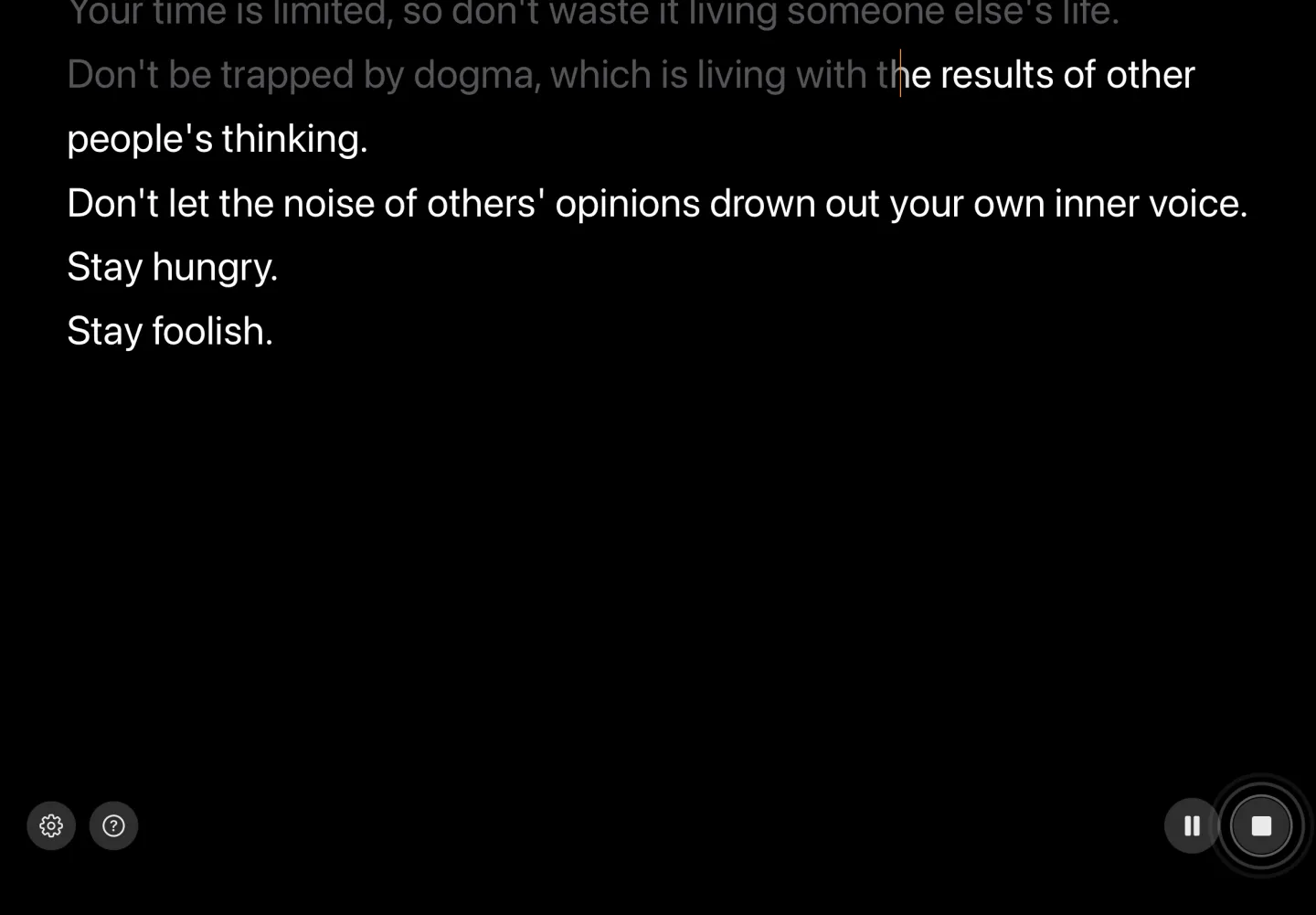
VoiceScroll funciona de forma nativa en iPadOS y desplaza el guion para ajustarse a tu voz en lugar de a una velocidad fija. Si haces una pausa para pensar o improvisas, el texto espera. Esto importa más en un iPad que en un teléfono, porque el iPad suele estar sobre un soporte donde nadie tiene las manos libres para ajustar la velocidad de desplazamiento. El control por voz significa que nunca te quedas atrás ni te adelantas al texto.
El nivel gratuito cubre guiones de hasta 300 caracteres; Pro (suscripción anual o mensual, o compra única de por vida; el precio aparece en la App Store) elimina el límite. La grabación con cámara es gratuita. De forma predeterminada, el reconocimiento de voz se procesa en el propio dispositivo en 34 idiomas, así que tu guion se queda en el iPad. Ideal para: leer guiones más largos sin usar las manos con el iPad detrás de tu cámara.
2. CuePrompter (Safari)
La opción gratuita más sencilla. Ábrela en Safari, pega tu texto, elige una velocidad, pasa a pantalla completa. Sin app, sin cuenta, sin coste. Solo tiene velocidad fija y no guarda tus guiones, pero para una lectura puntual en un iPad que ya tienes montado, es difícil de superar. Consulta nuestro resumen de herramientas gratuitas de teleprompter en el navegador para ver más opciones similares.
3. Teleprompter.com (Safari o app)
Funciona en el navegador o como app en el iPad. Pega el texto, fija una velocidad, empieza. La versión gratuita es básica pero funciona; el desplazamiento activado por voz es una función de pago. Bueno para un teleprompter rápido cuando no quieres instalar nada.
4. CapCut
La app de CapCut para iPad incluye un teleprompter gratis dentro de su pantalla de grabación: pega hasta 5000 caracteres, ajusta velocidad, tamaño de fuente y posición, y el guion se desplaza mientras filmas en el propio iPad. Solo tiene velocidad fija, así que no esperará cuando hagas una pausa, pero es gratis y práctico si ya editas en CapCut.
5. BigVu
Teleprompter y editor de vídeo en una sola app de iPad. Graba con el guion superpuesto, luego recorta y añade subtítulos sin salir de la app. El nivel gratuito cubre grabación básica; la versión premium añade mayor calidad y subtítulos automáticos. Bueno si quieres filmar en el iPad y editar en el mismo lugar.
Tres formas de montar un teleprompter con iPad
De lo más sencillo a lo más profesional:
- Soporte para tablet junto a la cámara. Coloca el iPad lo más cerca posible del objetivo, usa la app en horizontal y sube el tamaño de la fuente. Vale para tutoriales, entrevistas y cualquier cosa grabada en un escritorio. Cuanto más cerca esté el iPad del objetivo, más natural se ve tu línea de mirada.
- Guion en el iPad, cámara en tu iPhone. Mantén el guion completo en la pantalla grande del iPad y filma con tu iPhone o una cámara aparte. Las apps controladas por voz brillan aquí, porque nadie tiene las manos libres para ajustar la velocidad de desplazamiento mientras grabas.
- Montaje con espejo semitransparente (beam-splitter). Un teleprompter de tamaño tablet coloca el iPad debajo de un cristal en ángulo, para que leas justo sobre el objetivo y logres contacto visual genuino. Necesitarás una app con modo espejo para el texto reflejado. VoiceScroll cubre los dos ejes: «Espejar horizontalmente» y «Espejar verticalmente» están en Modo prompter → Ajustes de pantalla. Se aplican en ese modo de solo lectura, no cuando grabas con la cámara de la app. Nuestra guía de montaje de teleprompter cubre el hardware.
Gratis frente a de pago en iPad
Para guiones cortos (una intro, una descripción de producto, una pieza rápida a cámara), un nivel gratuito o una herramienta de navegador suele bastar. Los límites aparecen con guiones más largos y repeticiones frecuentes, donde los topes de longitud y el desplazamiento a velocidad fija empiezan a costarte tiempo y regrabaciones. Si quieres que el texto siga tu voz en un iPad montado sobre un soporte, VoiceScroll es gratis hasta 300 caracteres, y Pro elimina ese límite; si solo necesitas una lectura rápida ocasional, CuePrompter en Safari es gratis para siempre. Para ver cómo se compara cada nivel gratuito entre dispositivos, consulta nuestro resumen de las mejores apps de teleprompter gratis, o la guía de iPhone y iPad para ver también opciones de pago.
En resumen
Si tienes un iPad, pruébalo como teleprompter antes de comprar ningún hardware. Suele ser la mayor mejora para un montaje de escritorio. De forma gratuita, CuePrompter en Safari es la forma más rápida de empezar, y VoiceScroll añade desplazamiento controlado por voz que le sienta bien a un iPad montado sobre un soporte. Recurre a un montaje con espejo semitransparente solo cuando filmes con la frecuencia suficiente como para querer contacto visual real.
¿Quieres probarlo?
El reconocimiento de voz mantiene el guion al ritmo de tu habla. Pega, pulsa iniciar, habla — sin manos.
Prueba VoiceScroll gratis
Teleprompter controlado por voz que se desplaza al ritmo de lo que dices.