
ChatGPT・Claudeで台本を書いてVoiceScrollで読む方法
目次
ChatGPT and Claude are good at turning an idea or a page of notes into a first draft. VoiceScroll handles the next step: reading that draft out loud while the text follows your voice. There is no direct connection between them. You copy the answer and paste it into VoiceScroll, which takes less than a minute. This guide covers what to ask for, what to clean up before you paste, and how to mark directions so they don't trip you up.
Short answer
- In ChatGPT or Claude, ask for a script written to be spoken, in plain text, with any directions in square brackets.
- Copy the answer.
- Open VoiceScroll and paste it into the script box.
- Press start and read. The script moves as you speak and waits when you pause.
Ask for a script that is meant to be spoken
A script you read aloud is different from one you read silently. Ask for short sentences and everyday words. Ask for no headings, bullet points, or emoji, because they show up as symbols and aren't words you would say. Say how long it should run when read aloud, who it is for, and what tone you want.
Here are three requests you can copy and change. Replace the words in capitals with your own.
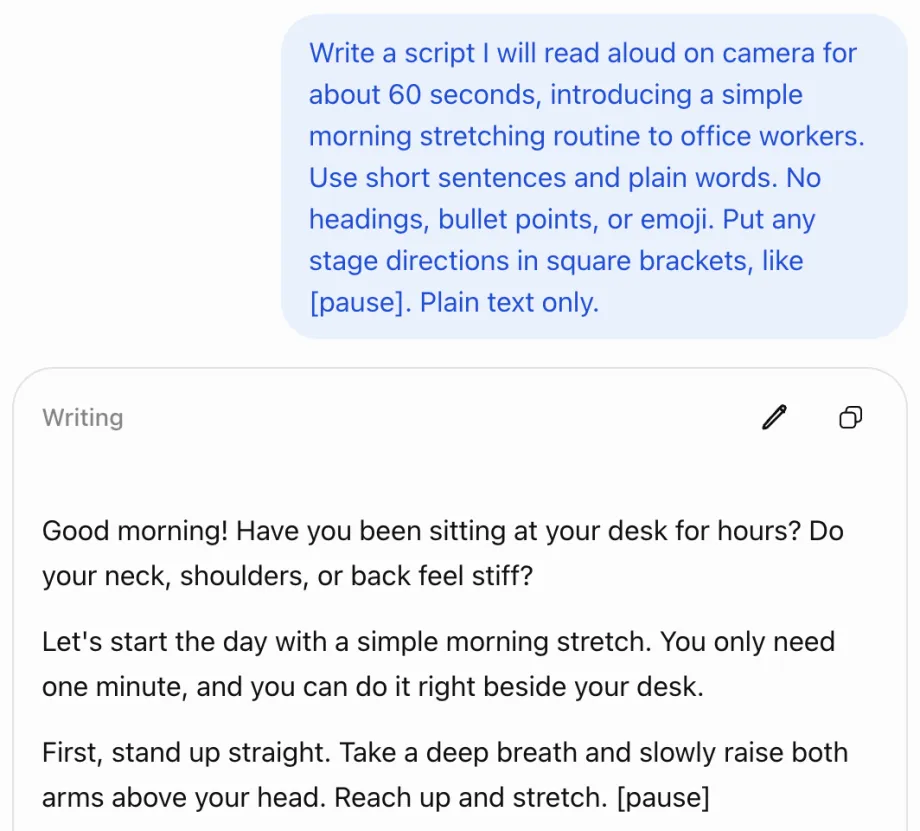
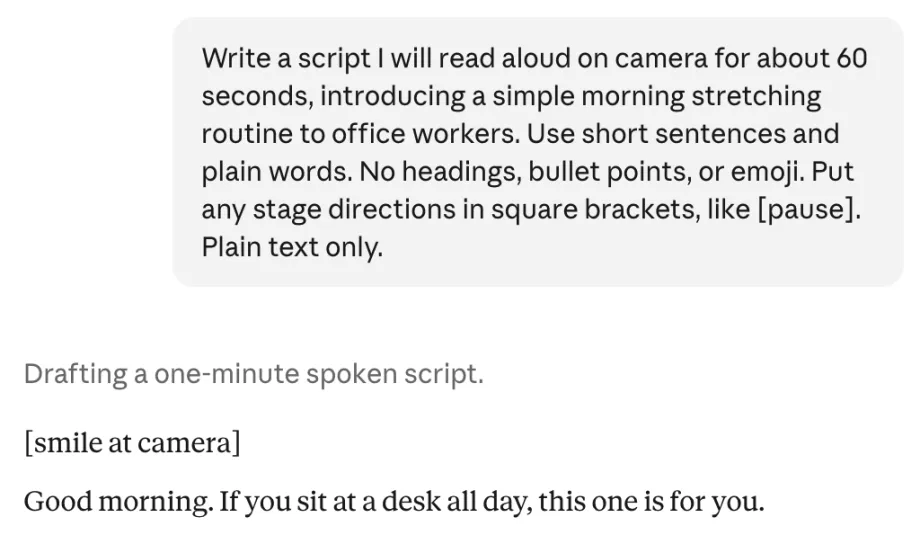
- From an idea: "Write a script I will read aloud on camera for about 60 seconds, introducing TOPIC to AUDIENCE. Use short sentences and plain words. No headings, bullet points, or emoji. Put any stage directions in square brackets, like [pause]. Plain text only."
- From notes or slides: "Turn these notes into a script I can read aloud in about 3 minutes. Keep my points in the same order, write it the way I would say it, and put a pause direction in square brackets between sections. Plain text only. NOTES"
- From a script you already have: "Rewrite this so it is easy to read aloud. Split long sentences, write numbers and symbols the way I would say them, and keep the meaning and the length. Plain text only. SCRIPT"
VoiceScroll's free tier covers scripts up to 300 characters. That is a very short script, so the examples above will go over it. To try the free tier first, ask for "under 300 characters" in place of the length. Pro lifts that limit.
Clean up before you paste
- Leave out the AI's opening line, such as "Sure, here's your script," and any offer at the end to make changes.
- Remove formatting symbols that came along, such as # before a heading or ** around bold text.
- ChatGPT's copy button can put a backslash in front of brackets, as in \[pause\]. Delete the backslashes.
- Read it out loud once. If a sentence makes you stumble, ask for a simpler version of just that sentence.
Paste it into VoiceScroll
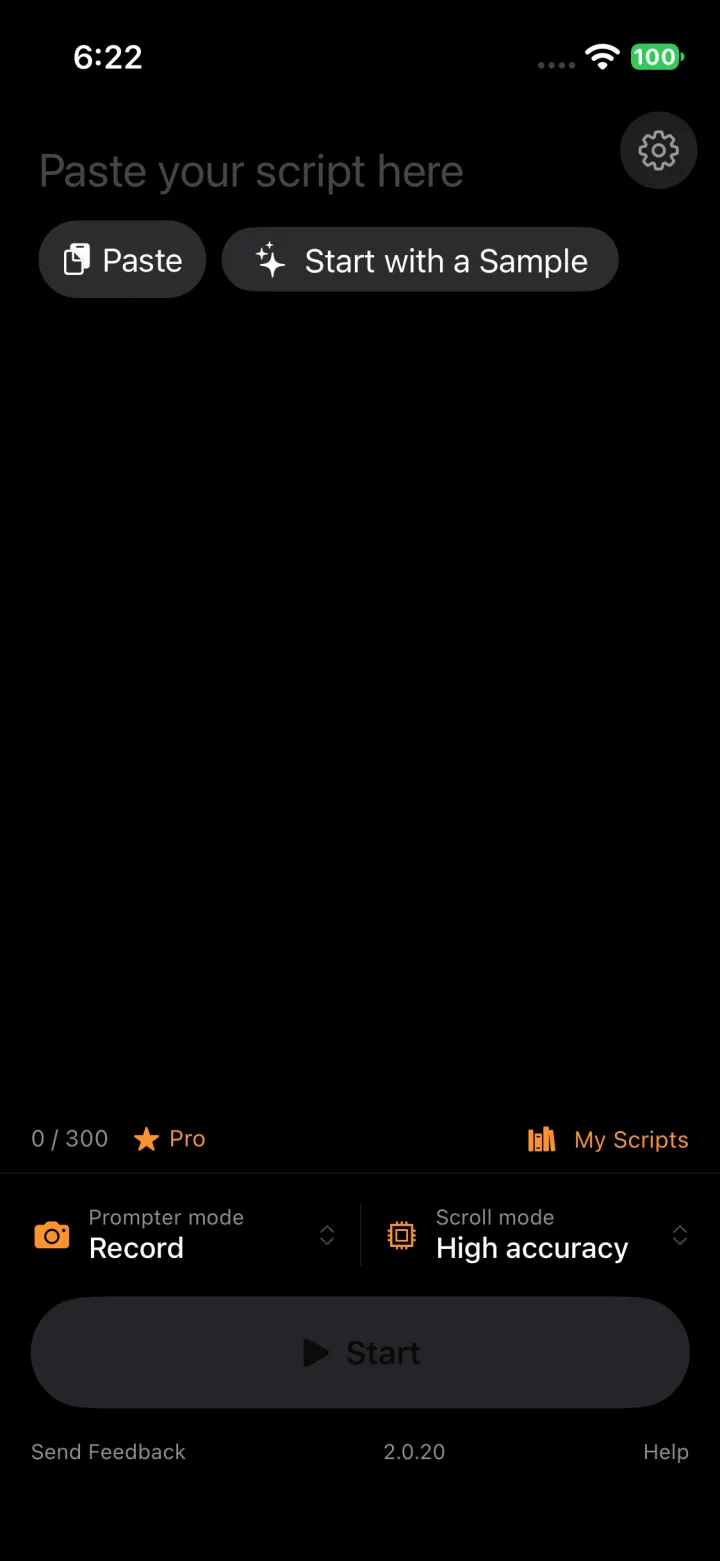
Copy the answer in ChatGPT or Claude, then open VoiceScroll. On iPhone and iPad, an empty script shows a Paste button while you have text copied. On Android, tap the box that says "Paste your script here" and paste. On Mac, click the script box and press Command-V. The Mac app runs on Macs with Apple silicon (M1 or later) and macOS 26 or later.
Use square brackets for directions
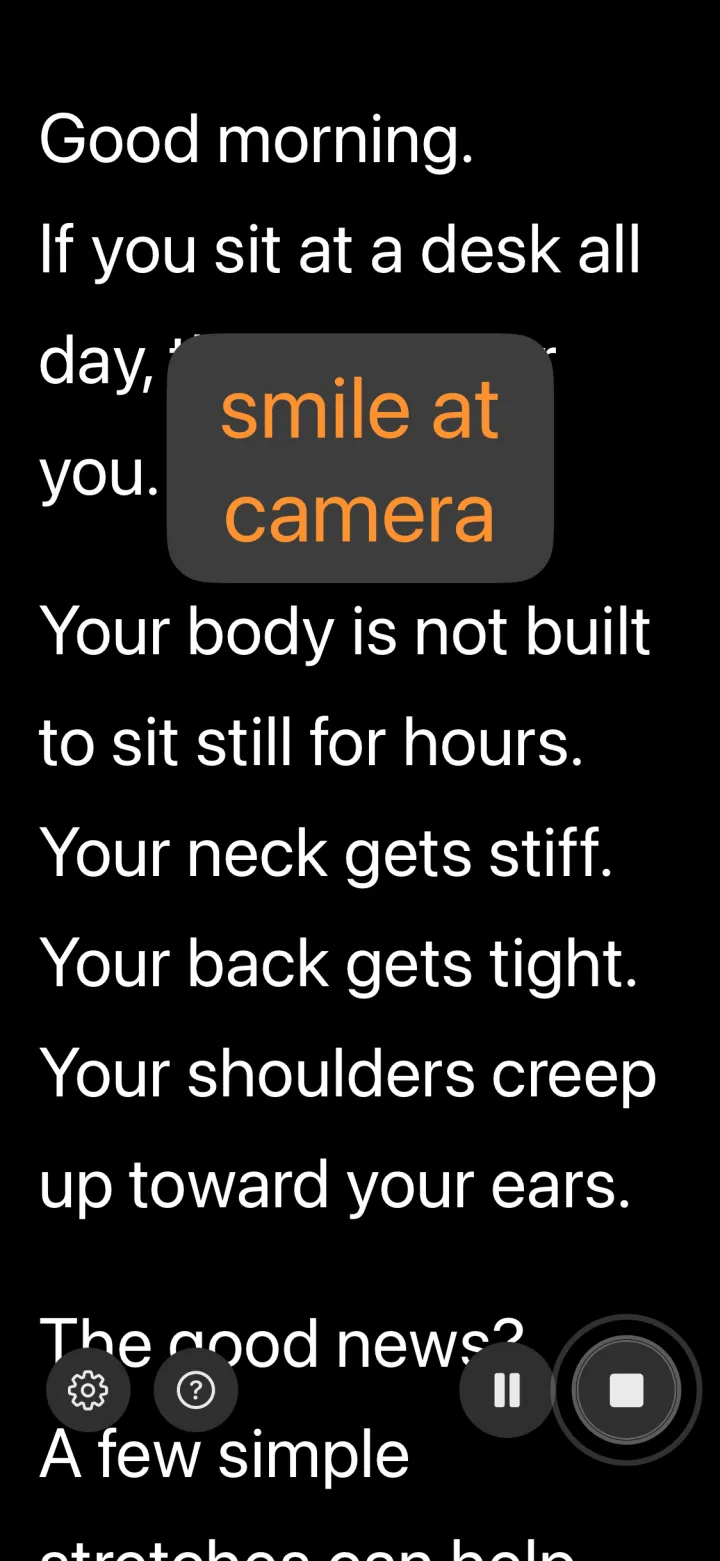
VoiceScroll treats words in square brackets as script directions. While you read, it doesn't wait for you to say them, and it takes them out of the line and shows them on their own as you reach them. One use is stage directions such as [smile] or [pause]. Another is a name that speech recognition tends to mishear: you still say the name, but the script doesn't stop there.
Square brackets are the default. You can switch to parentheses or braces, or turn directions off, under Script Directions in the app's settings.
Read it
Press start and read at your own pace. VoiceScroll listens and moves the script to match, so pausing to think or repeating a line doesn't make you lose your place. If you would rather not read aloud word for word, choose Auto-scroll in Scroll mode and the script moves at the speed you set.
Where your script goes
Whatever you type into ChatGPT or Claude, including your notes and the draft, goes to OpenAI or Anthropic and is handled under their own policies. If a script is confidential, check what that app does with your conversations before you paste it in.
Once you paste the script into VoiceScroll, the app stores it on your device, and we never receive it. On Android it may be included in the phone's own cloud backup. By default, speech recognition runs on your device too. On iPhone and iPad with iOS or iPadOS 27 and Apple Intelligence, VoiceScroll's own Script AI sends the script to Apple's servers only when you ask it to.