
App de teleprompter con desplazamiento automático
Contenido
If you've searched for "auto scroll text" or "an app that scrolls text for you," you've probably found tools that do very different jobs. Some scroll web pages or a feed so you don't have to swipe. Some run a ticker across a display. This guide is about the third kind: an auto-scrolling teleprompter, which moves a script you're reading out loud on camera, on stage, or in a meeting.
Teleprompters split into two kinds as well. One moves your script at a fixed speed you set ahead of time. The other listens to your voice and moves the text as fast, or as slow, as you actually talk. They feel nothing alike to use, and a lot of people don't realize the second kind exists until they try it.
The two kinds of auto-scroll
Fixed-speed scrolling
This is the classic teleprompter. You paste your script, pick a scroll speed, hit play, and the text crawls upward at that rate. It's simple and it works, as long as you can match your speaking pace to the number you picked. The problem is that almost nobody talks at a perfectly constant rate. You slow down on hard words, speed up when you're comfortable, stop when someone interrupts. Fixed-speed scrolling doesn't notice any of that. It just keeps going.
The usual fix is to keep one thumb on the speed slider, nudging it up and down as you talk. That works, but now you're operating the teleprompter instead of paying attention to what you're saying.
Voice-controlled scrolling
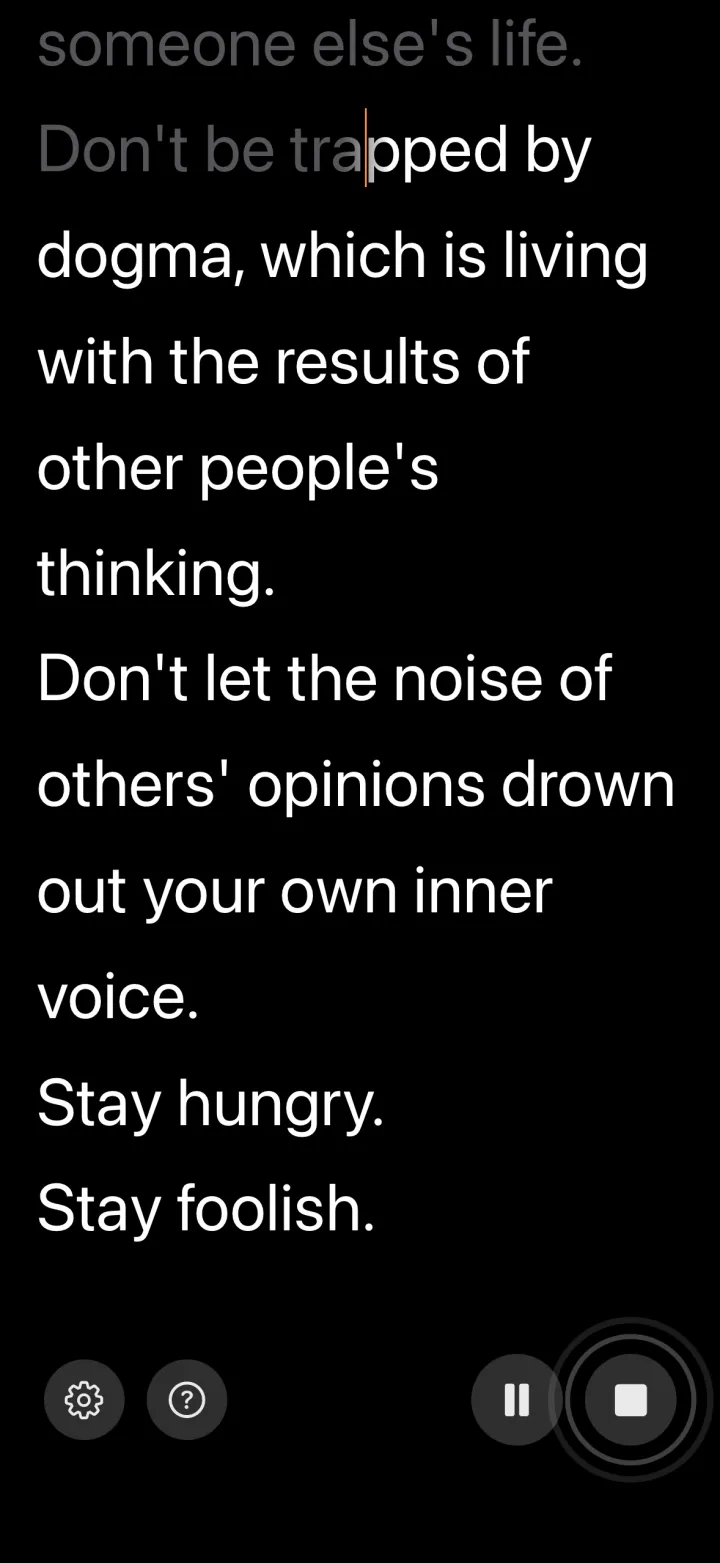
This is the kind people are usually hoping for when they search for "an app that scrolls for you." Instead of setting a speed, you just start talking. The app listens, figures out where you are in the script, and moves the text to match. Pause to think and it waits for you. Speed up and it speeds up too. Ad-lib off script and it picks you back up when you return. The first time it happens you stop noticing the teleprompter is even there, which is sort of the whole point.
VoiceScroll works this way. It uses on-device speech recognition to track your place in the script, so there's no fixed speed to fight, and by default nothing gets sent to a server.
Which one do you actually want?
Be honest about how you talk. If you read scripts at a steady, practiced pace, fixed-speed scrolling is fine and there are plenty of free options. If your pace wanders like most people's does, voice control removes the one thing that makes teleprompters feel awkward: syncing yourself to a machine instead of the other way around.
A few cases where voice control clearly wins:
- Live presentations where someone might ask a question mid-sentence.
- Speeches with deliberate pauses for emphasis or applause.
- Anything you haven't rehearsed enough to nail a fixed speed.
- Recording video, where stopping to fix the scroll speed means another take.
How to auto scroll a script, step by step
At a fixed speed
- Paste your script into a teleprompter app or a browser tool.
- Make the text large enough to read from where you'll stand or sit.
- Pick a slow speed and read the first paragraph out loud at your normal pace.
- Raise or lower the speed until the line you're reading stays near the same spot on the screen.
- Start again from the top, and keep the pause control within reach.
Following your voice
- Paste your script into a voice-controlled teleprompter.
- Check the language setting and allow microphone access.
- Press start and read out loud. The text moves when you do and waits when you pause.
VoiceScroll does both on iPhone, iPad, Android, and Mac. In its Scroll mode setting you choose what moves the script: your voice, or Auto-scroll, which moves it at the speed you set with no speech recognition. The Mac app runs on Macs with Apple silicon (M1 or later) and macOS 26 or later.
Free ways to auto scroll text
- In a browser: CuePrompter runs in the browser, is free for commercial and non-commercial use, and needs no account. It scrolls at an adjustable speed and can flip the text for teleprompter glass. Our guide to free browser-based teleprompters covers more options.
- On iPhone or iPad: Apple Pages has a free presenter mode that scrolls the body text automatically at a speed you set. If your script is already a Pages document, it scrolls without another app.
- Following your voice: VoiceScroll's free tier covers scripts up to 300 characters.
What to look for in an auto-scroll app
- How it scrolls. Fixed speed or voice-following? This is the biggest decision, and the one most app listings bury.
- Readability. A font big enough for your distance, adjustable line spacing, and a clear marker for where you are.
- Language support. If you present in something other than English, check this before you commit. Voice tracking only works if the app understands your language.
- Privacy. Voice control needs your microphone. On-device recognition keeps the audio on your phone; cloud-based recognition sends it out.
- What the free version covers. Script length, recording, and watermarks are where free tiers usually differ. Check them before you build a routine around an app.
The short version
"Auto scroll text" can mean a stopwatch with words on it, or it can mean something that actually follows you. If you want the second kind, VoiceScroll scrolls as you speak on iPhone, iPad, Android, and Mac (Apple silicon, macOS 26 or later), with on-device recognition by default. It can also scroll at a fixed speed. The free tier covers scripts up to 300 characters if you want to try it first; Pro lifts that limit as a yearly or monthly subscription or a one-time lifetime purchase, priced in the App Store and Google Play.
¿Quieres probarlo?
El reconocimiento de voz mantiene el guion al ritmo de tu habla. Pega, pulsa iniciar, habla — sin manos.
Prueba VoiceScroll gratis
Teleprompter controlado por voz que se desplaza al ritmo de lo que dices.