
Windows PC 與筆電免費提詞器推薦 2026
目錄
- Short answer
- Quick comparison
- QPrompt: the free native Windows app
- Where your laptop camera actually is
- Multiple monitors: put the prompter on the right screen
- Browser teleprompters on Windows
- Recording on the PC while you read
- Using a phone as your PC's prompter
- Reading during Teams, Zoom, and Meet calls
- Do you need mirror mode?
- When hardware makes sense
- Which one to pick
Yes, there is a genuinely free teleprompter for Windows, and the best one is open source rather than a trial that expires. Whether you record at a desktop, present from a laptop in a meeting room, or rehearse a script before a webcam, you have three realistic routes: a native Windows app, a browser tab, or a phone propped next to the screen. This guide covers all three, plus the one thing about laptop cameras that decides how good your setup can get.
Short answer
QPrompt is the best free teleprompter for Windows. It is open source, installs as a native Windows app, and its stable releases lock nothing behind a paid upgrade: mirror mode, adjustable scroll speed, a countdown timer, and an opacity slider that makes the background semi-transparent so the script can sit over a slide deck or a meeting window. If you cannot install software, for example on a managed work laptop, a browser tool does the same job in a tab. If you want the script to follow your voice instead of crawling at a fixed speed, no mainstream native Windows app does it on its own: the realistic options are a browser tool, dedicated hardware, or a phone or tablet beside the PC.
Quick comparison
| Option | What it is | Free tier | Best for |
|---|---|---|---|
| QPrompt | Native Windows app, open source | Stable releases fully free | The default pick on any PC |
| Teleprompter.com | Browser tool | Free Starter plan, account needed on the web | One-off scripts, locked-down laptops |
| Speakflow | Browser tool with voice-activated scrolling | Free tier, voice scrolling limited | Hands-free without installing anything |
| VoiceScroll | Phone and tablet app that follows your speech | Free tier | Hands-free reading with the phone beside the PC |
| Elgato Prompter | Hardware unit plus free Windows software | Software free, hardware required | True eye contact at a desk |
QPrompt: the free native Windows app
QPrompt is the one to install first on Windows 10 and 11. It runs as a real desktop application rather than a wrapped web page, so it gets its own window, goes full screen when you want it, and keeps browser chrome out of the way. Because the stable releases are open source and fully free, nothing important sits behind an upgrade prompt. Patreon supporters get early access to development builds, but the stable app is the complete one.
What you get: mirror mode for beam-splitter rigs, adjustable scroll speed, a countdown timer before the text starts moving, and an opacity slider that makes the background semi-transparent. That last one matters more on Windows than people expect. It lets the script sit over a PowerPoint deck, a browser, or a Teams window instead of taking the whole screen, which is the difference between a prompter you can use mid-presentation and one you have to alt-tab to.
The limit worth knowing up front: QPrompt scrolls at a speed you set. It does not listen to you. If you pause to think, the text keeps going, and you are back to nudging a speed control while the camera is running.
Where your laptop camera actually is
This is the part that decides how natural you look, and it differs from machine to machine in a way it does not on a MacBook.
Most Windows laptops put the webcam in the top bezel, centred above the screen. Some thin-bezel models moved it elsewhere: below the display, or into the keyboard row as a pop-up key. If your camera sits below the screen, reading text at the top of the display sends your eyes upward and away from the lens, and on camera it reads as though you are looking over the viewer's head. Check where the lens is before you arrange anything else.
Once you know: keep the prompter window narrow, roughly a third of the screen width, and put it as close to the lens as the layout allows. Top-bezel camera means a narrow column pinned to the top centre. Bottom or keyboard camera means the text belongs at the bottom of the screen instead, which feels wrong until you see the recording. On a desktop with an external webcam, put the window directly beneath the camera and move the camera itself if the eye line is still off.
A wide screen makes this worse if you ignore it. A full-width block of text forces your eyes to sweep left to right across the whole display, and that movement is far more visible on camera than vertical scrolling is.
Multiple monitors: put the prompter on the right screen
Desktop PC setups often have two or three displays, and the instinct is to give the prompter its own monitor so nothing overlaps. That is usually the wrong call. A second monitor sits off to one side, so reading from it turns your head, and a turned head is the most obvious tell there is on camera.
Put the prompter on whichever display your camera is mounted on, in a narrow column near the lens, and use the other screens for the things you are not reading: the recording software, your slides, the meeting participants. QPrompt's semi-transparent background is what makes this workable, since the prompter can share the camera monitor with whatever else needs to be there.
Browser teleprompters on Windows
If you are on a work laptop where you cannot install software, a browser tool is the fastest route. Teleprompter.com has a free Starter plan, though on the web it asks you to create a free account first. Speakflow is the more capable option because it offers voice-activated scrolling in the browser, so the text responds to your speaking rather than to a timer.
Browser tools have one structural weakness on a desktop: they live in a tab, and a tab is a window you have to arrange around everything else on screen. For a full-screen rehearsal that is fine. For reading while you drive a slide deck, a native app with a semi-transparent background is easier to live with. There are more no-install options in our roundup of free browser-based teleprompter tools.
Recording on the PC while you read
Windows ships with a Camera app that handles a straight webcam recording, and OBS Studio is the free step up when you want scene control or a capture card in the chain. Either way, start the recording first and bring the prompter window forward after, so the countdown and your first fumble are not in the take.
One combination to test before you rely on it: a prompter that listens to your voice running on the same PC that is recording your audio. Windows normally lets several applications capture from the same microphone at once, so this often works fine. It can still fail when an application takes the input in exclusive mode or handles audio its own way, and you will not know which case you are in until you try. Do a short test take first, or run the prompter on a separate device and remove the question entirely.
Using a phone as your PC's prompter
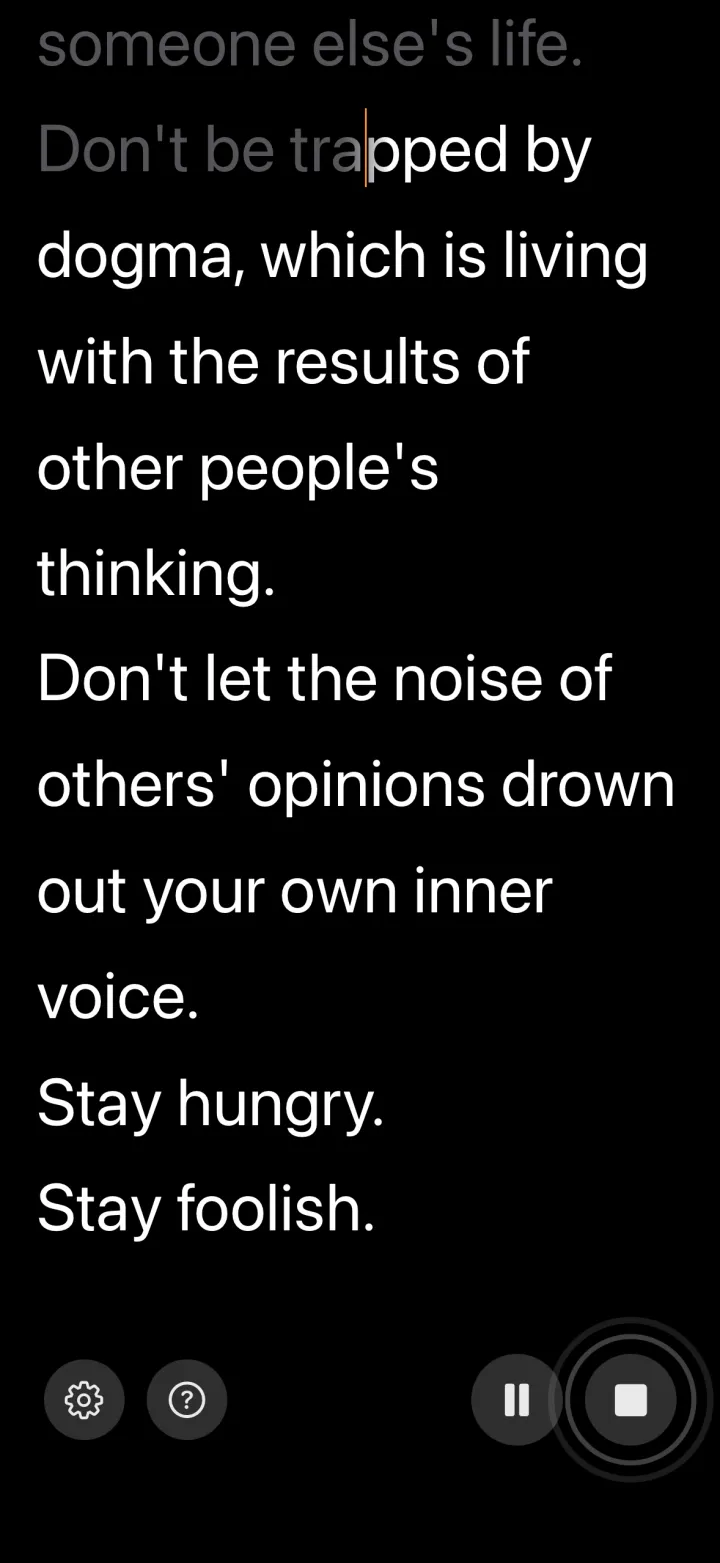
A common setup among people who record at a desk is not a desktop app at all. It is a phone on a small stand, sitting just under or beside the camera, running a prompter while the PC handles the recording, the call, or the slides.
Two reasons this wins often enough to be worth trying. First, eye line: a phone can be positioned exactly where you need it, inches from the lens, which is something no window on a fixed monitor can do. Second, voice-following scrolling is available on phones in a way no native Windows app matches. Voice-following prompters listen to what you are saying and advance the script to match, so a pause or an ad-lib does not desynchronise you from the text.
VoiceScroll works this way on iPhone, iPad, and Android. On iPhone and iPad, recognition is on-device by default, so the script and the microphone audio stay on the phone. On Android, VoiceScroll asks for on-device recognition by default and doesn't pick a server-based recognizer by itself: if your device has no offline recognizer for the language you picked, it tells you instead of switching to a server. For that language you can try Online recognition, which sends your audio to Google and needs an internet connection. Because the prompter is on a separate device from the PC, the two never compete for the same microphone, which is exactly the contention described above. There is no Windows version of VoiceScroll, so this is the route if you want voice-following on a PC setup. Our Android teleprompter guide and iPhone and iPad guide cover the app side.
Reading during Teams, Zoom, and Meet calls
For a video call you need no mirror mode and no hardware. You are reading straight off the screen, so the whole job is putting the text near the lens and making it big enough. A narrow prompter window directly under your webcam, font size raised until it is comfortable from where you actually sit, and you are done.
The one thing to think about is the microphone. A fixed-speed prompter such as QPrompt does not touch it, so it coexists with any meeting app. A prompter that listens to your voice is a different matter: the meeting has the microphone for the duration of the call, and anything else wanting the same input may end up fighting for it. On a call, a fixed-speed prompter on the PC is the reliable choice.
Do you need mirror mode?
Only for a beam-splitter rig, where angled glass in front of the lens reflects a screen below it so you read text that appears to float over the lens while the camera shoots through the glass. The reflection flips the text, which is what mirror mode compensates for.
If you are reading off a laptop screen or a monitor, you want normal unmirrored text. Turning mirror mode on because it sounds professional is a common first mistake, and it produces text you cannot read.
When hardware makes sense
Most people do not need a hardware prompter. A phone or tablet near the lens covers YouTube, presentations, and most client-facing video, and the small eye shift it produces goes unnoticed outside broadcast work.
The case for hardware is genuine eye contact, and on a desk the best-known option is the Elgato Prompter, a compact unit with a built-in display that sits in front of a webcam, mirrorless camera, or DSLR. Its Camera Hub software runs on Windows as well as Mac, is free, and manages scripts. Its Voice Sync feature scrolls only while you are actually speaking, but check the requirements before you buy for that reason specifically: on Windows, Elgato lists Camera Hub 1.11 or newer and an NVIDIA RTX 2060 or better, plus a CUDA download, so an otherwise capable PC without that GPU is not guaranteed to run it. You are buying the beam splitter and the eye line, not the software.
Which one to pick
- Free, native, and installed on your own PC: QPrompt.
- Work laptop where you cannot install anything: Teleprompter.com, or Speakflow if you want voice-activated scrolling.
- Recording yourself and want the script to wait when you pause: a voice-following app on a phone next to the PC.
- Presenting from slides: QPrompt with its semi-transparent background over your deck.
- On a Teams or Zoom call: a fixed-speed prompter on the PC, positioned under the webcam.
- Real eye contact at a desk: Elgato Prompter or a beam-splitter rig driven by QPrompt in mirror mode.
For the Mac side of the same question, see our guide to the best free teleprompter for Mac, and if you have not settled whether the script belongs on the PC at all, start with where to put the prompter, phone or computer.