
如何对着镜头读稿却不显得像在念稿
目录
Short answer: reading shows on camera when your eyes move: down to a script, across a line, back up. You hide it by keeping the text near the lens, narrowing it to a few words per line, and glancing in short bursts instead of reading whole sentences. The biggest help is letting the text move at your speaking pace, so you're never racing to catch up or waiting for it.
Almost everyone who makes videos reads from something: a note, an outline, a full script. The problem isn't reading; it's looking like you're reading. Below are six techniques that fix the tells, from where you place the text to how you pace it.
Why reading shows up on camera
Two things give it away. First, vertical eye movement: if your notes sit on the desk or low on your phone, your eyes drop and come back, and the camera catches every trip. Second, the side-to-side scan: as you read a long line, your eyes track across it, which looks nothing like talking to a person. Fix those two movements and most of the "reading look" disappears, even if you're reading every word.
1. Put the text right next to the lens
The single biggest fix. Raise your script to the same height as the camera so reading and looking at the lens become the same direction. On a desk setup, that means propping a phone or tablet just under or beside the lens, not flat on the table. The closer the text is to the lens, the less your eyes have to travel, and the more it reads as eye contact.
2. Narrow the text to a few words per line
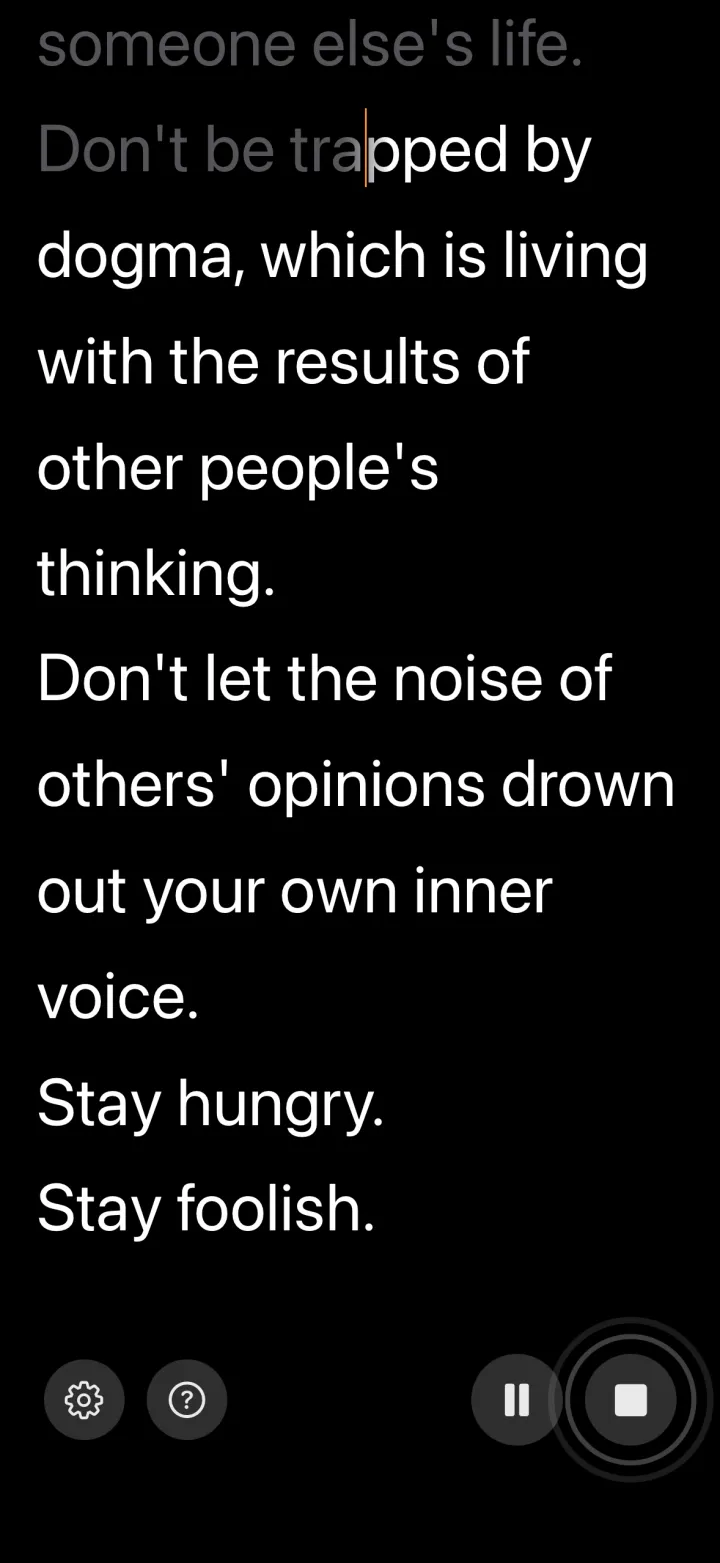
Wide lines force your eyes to scan left to right, which is the most obvious tell. Cut the text column down so only a handful of words sit on each line. Your eyes barely move horizontally, and a glance takes in a whole line at once. Most teleprompter and notes apps let you shrink the reading width; use it.
3. Glance in short bursts, then look back at the lens
Don't read a sentence straight through. Take in a few words, look back at the lens, say them, then glance again. It feels slower at first, but on camera it reads as someone thinking and talking, not scrolling a page. This is much easier when the text isn't running away from you, which is the next point.
4. Match the scroll to your speaking pace
Fixed-speed scrolling is what makes most people look like they're reading. You set a speed, and then you're either racing to keep up or waiting for the next line, and both pull your eyes to the text to check where you are. The fix is to let the text follow your voice instead of a timer. Voice-controlled apps like VoiceScroll listen as you speak and advance the script to match, so it waits when you pause and moves when you talk. Because you're never chasing the scroll, your eyes can stay on the lens. Several apps do this, and most have a free tier.
5. Know it well enough to glance, not memorize
You don't need the script word-for-word. You need to know it well enough that a glance is a reminder, not a first read. Read it out loud two or three times before you record, not to memorize but to learn the cadence and the order of your points. Then the script is a safety net you check, not a wall of text you decode.
6. Back away from the camera
The further you are from the lens, the harder it is to tell exactly where you're looking, so small eye movements toward the text become invisible. If your camera can zoom, step back and zoom in to keep the framing. This alone covers a lot of glancing.
Put it together
Stack the techniques: text at lens height, narrowed to a few words a line, paced to your voice, rehearsed enough to glance, shot from a step back. None of them require memorizing a script or hiding that you have one. They just stop the reading from showing. For more on sounding relaxed once the eye-line is handled, see how to deliver a script naturally, and for vertical video specifically, our notes on filming better talking-head videos.