
Real-Time Subtitles in 2026: What Actually Works
On this page
Real-time subtitles used to be a niche accessibility feature. Now they're everywhere: built into operating systems, video call platforms, and standalone apps. But not all live captioning is created equal. Here's what actually works in 2026.
What real-time subtitles are (and aren't)
Real-time subtitles convert spoken audio to text as it happens, with minimal delay. They're different from pre-generated subtitles that you'd attach to a YouTube video. The key challenges are speed (latency), accuracy, and handling multiple speakers.
No real-time system is perfect. You'll see errors with accents, technical jargon, and fast speech. The question isn't whether it's flawless. It's whether it's useful enough for your situation.
Built-in OS features
Apple Live Captions (iOS, macOS)
Available system-wide since iOS 16. It captions any audio: phone calls, FaceTime, videos, podcasts. It works on-device, so your audio isn't sent to Apple's servers. The catch: it's currently best in English. Other languages are supported but accuracy drops noticeably.
Google Live Caption (Android, Chrome)
Android's Live Caption works similarly: it captions any media audio on-device. The Chrome browser version extends this to any audio playing in a tab. Google has been doing speech recognition for a long time, and it shows. Multiple language support is solid.
Windows Live Captions
Added in Windows 11. Captions any audio from any app. On-device processing. English-only at launch, but more languages have been added. It's adequate, if not spectacular.
Video call platforms
Zoom
Zoom's live transcription is on by default for most accounts now. It handles multiple speakers reasonably well and labels who said what. Accuracy is solid for clear English, gets shakier with accents or people talking over each other.
Google Meet
Live captions in Meet are reliable. They support a growing list of languages. The captions are only visible to you. Other participants see their own captions in their chosen language.
Microsoft Teams
Teams added live captions and full transcription. The transcript is saved after the meeting, which is useful for note-taking. Language support has expanded significantly.
Standalone apps and tools
Otter.ai
Probably the most well-known real-time transcription app. It joins your meetings, transcribes in real time, identifies speakers, and generates summaries. The free tier gives you 300 minutes per month. It's impressive but cloud-based: your audio goes to their servers.
Web Captioner
A free browser-based tool that uses your microphone to generate live captions. Useful for presentations and live events. The captions can be displayed on a second screen or streamed via OBS.
VoiceScroll
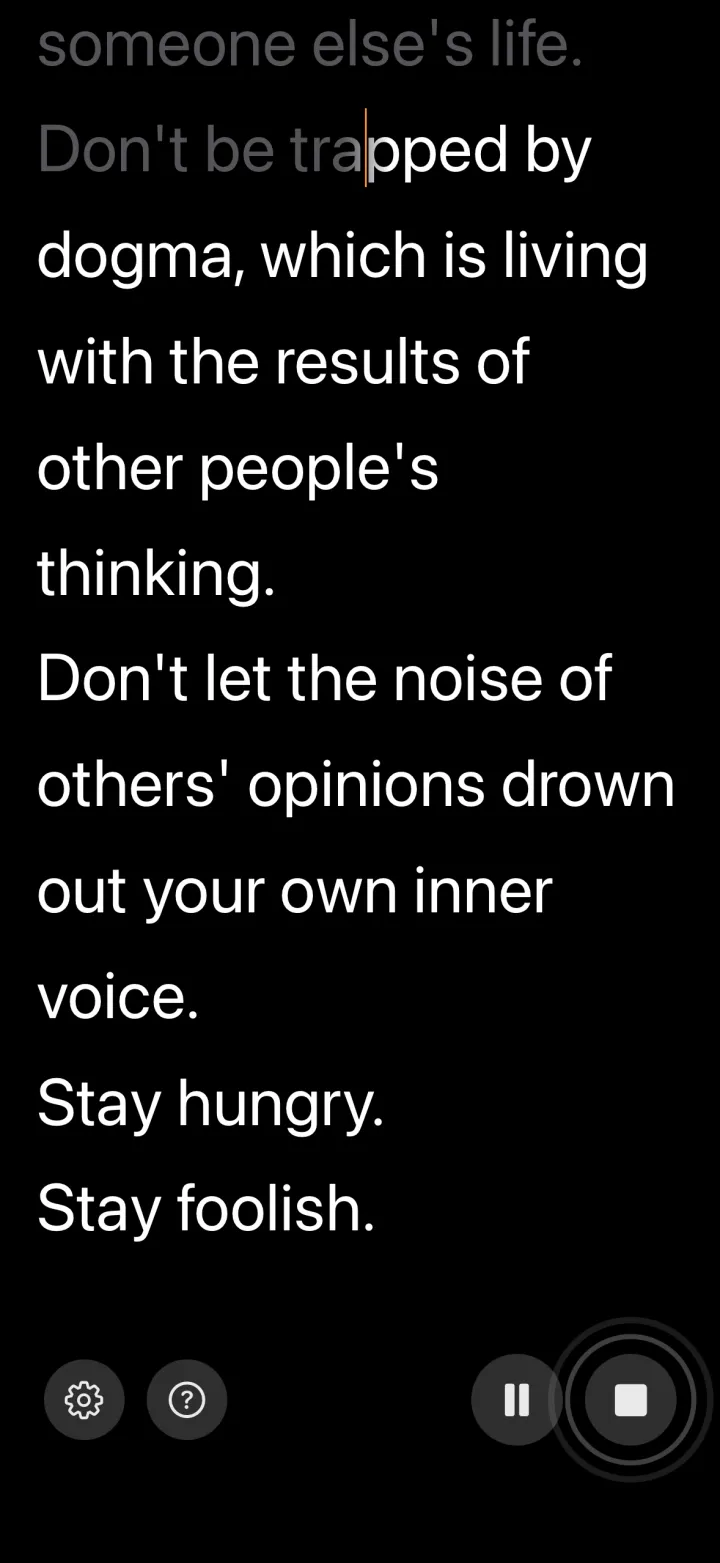
A different angle on real-time text: VoiceScroll is a teleprompter that follows your voice in real time. Instead of generating new text from speech, it tracks your position in an existing script as you speak. It relies on the same kind of speech recognition (by default on the device: Apple's on iPhone and iPad, the device's recognition service on Android), but the use case is different: it's for speakers who already have their text and want it to scroll automatically as they talk. Useful for presentations, speeches, and video recordings where you need your script to keep pace with you.
Accessibility matters
Real-time subtitles aren't just convenient. They're essential for deaf and hard-of-hearing people. If you're organizing a meeting or event, turning on live captions takes about 5 seconds and makes a real difference. There's no reason not to.
Beyond hearing accessibility, real-time captions also help:
- Non-native speakers following along in meetings
- People in noisy environments
- Anyone processing information better by reading than listening
What to look for
When choosing a real-time subtitle tool, consider these factors:
- Latency: How fast do captions appear after someone speaks? Under 2 seconds is good.
- Accuracy: Test it with your actual use case. Accuracy varies dramatically between clean audio and a noisy conference room.
- Language support: If you need non-English captions, verify it specifically. "Supports 50 languages" often means "works well in 5."
- Privacy: On-device processing keeps audio local. Cloud processing may be more accurate but sends your audio to servers.
- Cost: OS-level features are free. Third-party tools range from free tiers with limits to expensive enterprise plans.
The practical takeaway
For most people, the live caption feature already built into your phone or computer is good enough for everyday use. For meetings, your video call platform's built-in transcription works. For professional-grade transcription with speaker identification and summaries, Otter.ai is the go-to. And if you're a speaker who needs real-time text tracking rather than transcription, VoiceScroll fills that specific gap.
Ready to try it?
Speech recognition keeps your script in sync as you talk. Paste, tap start, speak — no hands.
Try VoiceScroll for free
Voice-powered teleprompter that scrolls as you speak.