
2026 年 iPad 提词器应用推荐:免费与付费对比
目录
Short answer: there is no single best teleprompter app for iPad, because the right one depends on how you film. If you want the script to wait when you pause, VoiceScroll follows your voice natively on iPadOS. If you want to start in ten seconds with nothing installed, CuePrompter runs in Safari for free. If you film and edit in the same place, CapCut has a prompter inside its record screen. Paid tiers are worth it only for longer scripts and frequent re-takes.
An iPad is the prompter display most creators already own. Its screen is large enough to read comfortably from a step or two back, which keeps your eye line close to the camera and your script off your phone. This guide covers the teleprompter apps worth using on iPad in 2026, which one fits which kind of filming, and how to physically set the iPad up so it doesn't look like you're reading.
Why an iPad makes a good teleprompter
The thing that makes a teleprompter work is reading distance. On a phone, the text is small, so you have to hold it close, and the closer the script is, the more obviously your eyes dart across it. An iPad's larger display lets you push it back toward the camera and bump the font size up, so a glance reads as a glance, not as reading. It also sits steadily on a stand, and most people already have one, so it's the cheapest upgrade to a desk filming setup.
Quick comparison
| App | Scrolling | Runs on iPad as | Free tier | Best for |
|---|---|---|---|---|
| VoiceScroll | Voice-controlled (follows your speech) | Native iPadOS app | Scripts up to 300 characters; Pro (yearly, monthly or lifetime) lifts the limit | Long scripts on a stand, hands-free |
| CuePrompter | Fixed speed | Safari (web) | Full, no account | A one-off read, nothing installed |
| Teleprompter.com | Fixed speed (voice on paid) | App or Safari | Basic scrolling | Trying a prompter before committing |
| CapCut | Fixed speed, in record screen | Native iPad app | Script up to 5,000 characters | Filming in the app you already edit in |
| BigVu | Fixed speed + recording | Native iPad app | Basic recording | Record, trim and caption in one place |
Which iPad teleprompter app is best for you?
The choice comes down to four questions about how you actually shoot.
Does the script need to wait when you pause? This is the one difference that changes how a take feels. Fixed-speed scrolling sets a pace and holds it, so an ad-lib or a pause to think leaves you racing to catch up. Voice-controlled scrolling follows your speech instead. On an iPad it matters more than on a phone, because the iPad usually sits on a stand where nobody is free to nudge the speed. VoiceScroll is the option that does this natively on iPadOS; Teleprompter.com puts voice scrolling behind a paid plan.
Do you need to record on the iPad itself, or read from it? If the iPad is your prompter and a separate camera or iPhone is filming, any of these work and reading comfort is what counts. If the iPad is doing both jobs, you need a prompter that overlays its own record screen: CapCut and BigVu do this for free, and VoiceScroll records with the camera on the free tier too.
How long is the script? Short pieces to camera stay inside most free tiers here, though VoiceScroll's 300-character limit is the tightest of them. Length caps and re-takes are what push people to pay, so pick on script length rather than on the feature list.
Can you install anything? On a shared or managed iPad, Safari tools are the whole answer, and CuePrompter is the fastest of them.
The best teleprompter apps for iPad
1. VoiceScroll
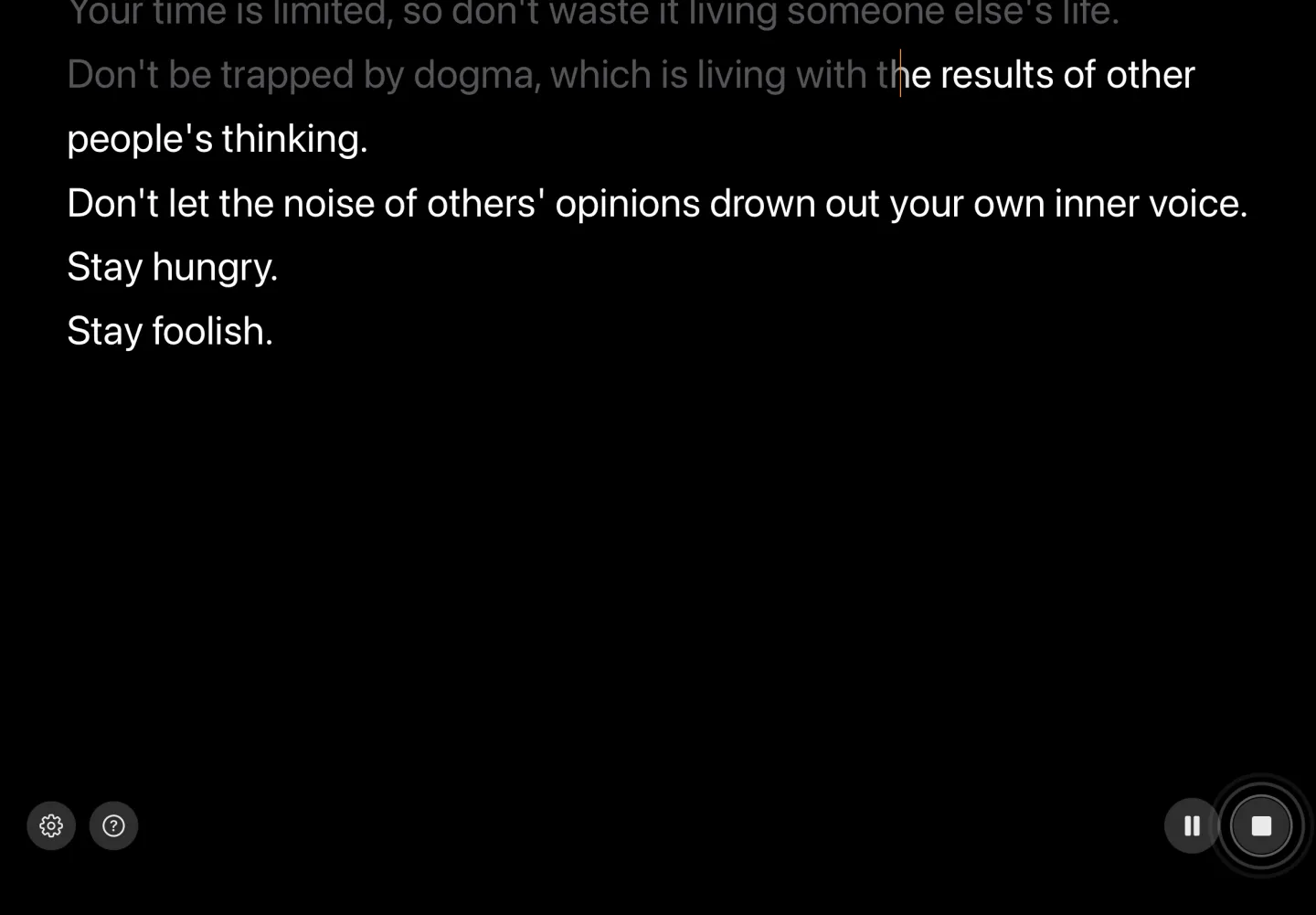
VoiceScroll runs natively on iPadOS and scrolls the script to match your voice instead of a fixed speed. If you pause to think or ad-lib, the text waits. That matters more on an iPad than a phone, because the iPad usually sits on a stand where no one is free to nudge the scroll speed. Voice control means you never fall behind or race ahead of the text.
The free tier covers scripts up to 300 characters; Pro (yearly or monthly subscription, or a one-time lifetime purchase, priced in the App Store) removes the limit. Camera recording is free. By default, speech recognition runs on-device in 34 languages, so your script stays on the iPad. Best for: reading longer scripts hands-free with the iPad behind your camera.
2. CuePrompter (Safari)
The simplest free option. Open it in Safari, paste your text, pick a speed, go full-screen. No app, no account, no cost. It's fixed-speed only and won't save your scripts, but for a one-off read on an iPad you already have set up, it's hard to beat. See our roundup of free browser-based teleprompter tools for more like it.
3. Teleprompter.com (Safari or app)
Runs in the browser or as an app on iPad. Paste text, set a speed, start. The free version is basic but works; voice-activated scrolling is a paid feature. Good for quick teleprompting when you don't want to install anything.
4. CapCut
CapCut's iPad app includes a free teleprompter inside its record screen: paste up to 5,000 characters, adjust speed, font size, and position, and the script scrolls while you film on the iPad itself. It's fixed-speed only, so it won't wait when you pause, but it's free and convenient if you already edit in CapCut.
5. BigVu
Teleprompter plus video editor in one iPad app. Record with the script overlaid, then trim and add captions without leaving the app. The free tier covers basic recording; premium adds higher quality and auto-captions. Good if you want to film on the iPad and edit in the same place.
Three ways to set up an iPad teleprompter
From simplest to most professional:
- Tablet stand next to the camera. Stand the iPad as close to the lens as possible, run the app in landscape, and raise the font size. Fine for tutorials, interviews, and anything shot at a desk. The closer the iPad is to the lens, the more natural your eye line looks.
- Script on the iPad, camera on your iPhone. Keep the full script on the iPad's big screen and film with your iPhone or a separate camera. Voice-controlled apps shine here, because nobody is free to adjust scroll speed while you record.
- Beam-splitter rig. A tablet-size teleprompter puts the iPad below a piece of angled glass, so you read directly over the lens for genuine eye contact. You'll need an app with a mirror mode for the reflected text. VoiceScroll has both axes: Mirror horizontally and Mirror vertically, in Prompter mode → Display settings. They apply in that read-only mode, not when you film through the app's own camera. Our teleprompter setup guide covers the hardware.
Free vs. paid on iPad
For short scripts (an intro, a product blurb, a quick piece to camera), a free tier or a browser tool usually does the job. The limits show up with longer scripts and frequent re-takes, where length caps and fixed-speed scrolling start to cost you time and re-records. If you want the text to follow your voice on a stand-mounted iPad, VoiceScroll is free up to 300 characters, and Pro lifts that limit; if you only need the occasional quick read, CuePrompter in Safari is free forever. For how each free tier compares across devices, see our best free teleprompter apps roundup, or the iOS capability comparison for which app does what across iPhone and iPad.
Bottom line
If you own an iPad, try it as your prompter before buying any hardware. It's usually the biggest upgrade to a desk setup. For free, CuePrompter in Safari is the fastest start, and VoiceScroll adds voice-controlled scrolling that suits a stand-mounted iPad. Reach for a beam-splitter rig only once you're filming often enough to want true eye contact.