
自动滚动提词器应用:跟着你说话速度走的文本
目录
If you've searched for "an app that scrolls text for you," you've probably run into two very different things hiding under that one phrase. One moves your script at a fixed speed you set ahead of time. The other listens to your voice and moves the text as fast, or as slow, as you actually talk. They feel nothing alike to use, and a lot of people don't realize the second kind exists until they try it.
The two kinds of auto-scroll
Fixed-speed scrolling
This is the classic teleprompter. You paste your script, pick a scroll speed, hit play, and the text crawls upward at that rate. It's simple and it works, as long as you can match your speaking pace to the number you picked. The problem is that almost nobody talks at a perfectly constant rate. You slow down on hard words, speed up when you're comfortable, stop when someone interrupts. Fixed-speed scrolling doesn't notice any of that. It just keeps going.
The usual fix is to keep one thumb on the speed slider, nudging it up and down as you talk. That works, but now you're operating the teleprompter instead of paying attention to what you're saying.
Voice-controlled scrolling
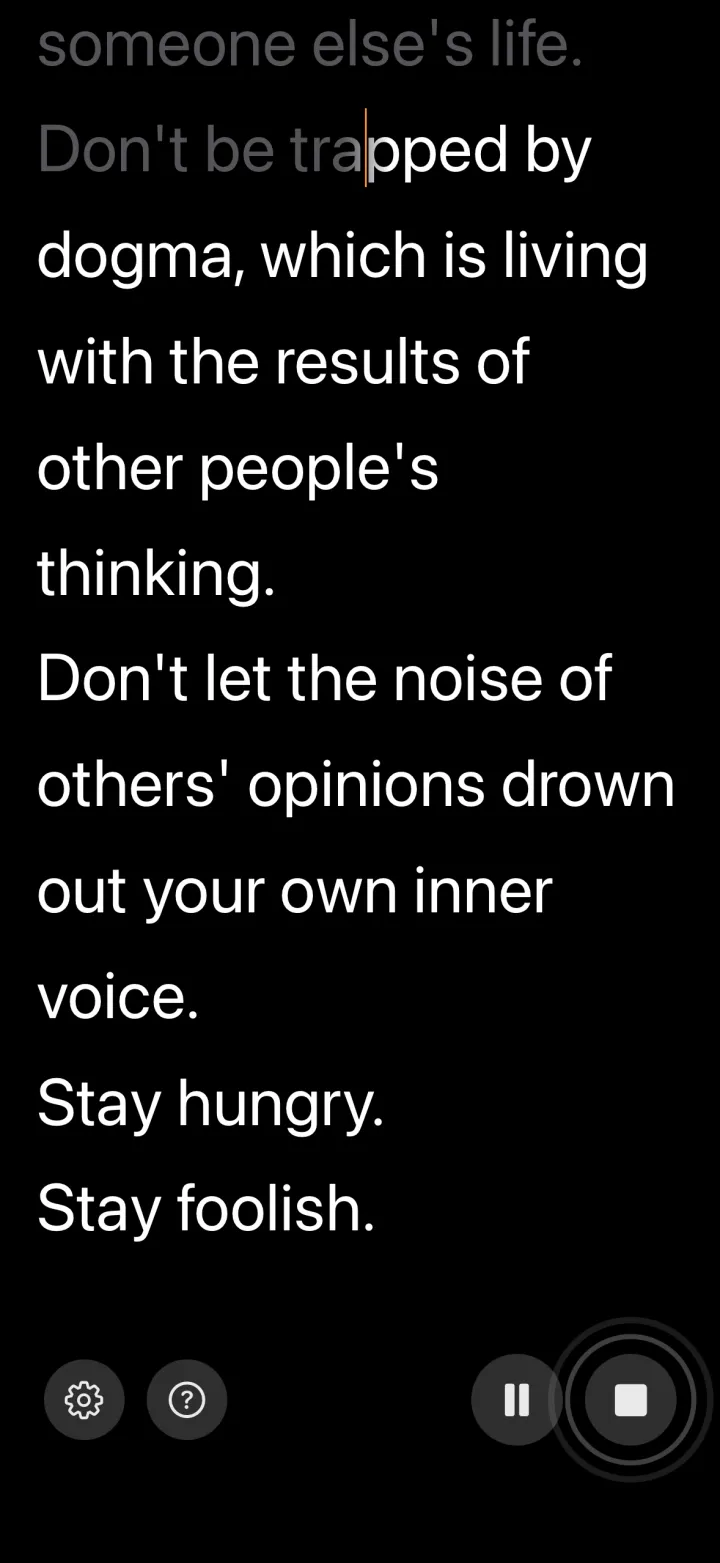
This is the kind people are usually hoping for when they search for "an app that scrolls for you." Instead of setting a speed, you just start talking. The app listens, figures out where you are in the script, and moves the text to match. Pause to think and it waits for you. Speed up and it speeds up too. Ad-lib off script and it picks you back up when you return. The first time it happens you stop noticing the teleprompter is even there, which is sort of the whole point.
VoiceScroll works this way. It uses on-device speech recognition to track your place in the script, so there's no fixed speed to fight, and by default nothing gets sent to a server.
Which one do you actually want?
Be honest about how you talk. If you read scripts at a steady, practiced pace, fixed-speed scrolling is fine and there are plenty of free options. If your pace wanders like most people's does, voice control removes the one thing that makes teleprompters feel awkward: syncing yourself to a machine instead of the other way around.
A few cases where voice control clearly wins:
- Live presentations where someone might ask a question mid-sentence.
- Speeches with deliberate pauses for emphasis or applause.
- Anything you haven't rehearsed enough to nail a fixed speed.
- Recording video, where stopping to fix the scroll speed means another take.
What to look for in an auto-scroll app
- How it scrolls. Fixed speed or voice-following? This is the biggest decision, and the one most app listings bury.
- Readability. A font big enough for your distance, adjustable line spacing, and a clear marker for where you are.
- Language support. If you present in something other than English, check this before you commit. Voice tracking only works if the app understands your language.
- Privacy. Voice control needs your microphone. On-device recognition keeps the audio on your phone; cloud-based recognition sends it out.
- Cost. Plenty of apps are free to start, then charge monthly. A one-time purchase is usually cheaper if you'll use it regularly.
The short version
"An app that scrolls text for you" can mean a stopwatch with words on it, or it can mean something that actually follows you. If you want the second kind on iPhone or iPad, VoiceScroll scrolls as you speak, works with on-device recognition by default in 34 languages on iPhone/iPad. The free tier covers scripts up to 300 characters if you want to try it first; Pro lifts that limit as a yearly or monthly subscription or a one-time lifetime purchase, priced in the App Store and Google Play.