
Mac用の無料テレプロンプター2026:QPromptと代替手段
目次
- Short answer
- What if you are willing to pay?
- Quick comparison
- QPrompt: the free native Mac app
- Two more native Mac apps: Textream and Virtual Teleprompter
- Browser teleprompters on a Mac
- Using an iPhone or iPad as your Mac's prompter
- Do you need mirror mode on a Mac?
- Where to put the text on screen
- Recording on the Mac while you read
- When hardware makes sense
- Which one to pick
Yes, there is a genuinely free teleprompter for Mac, and it is not a stripped trial version. If you record at your desk, present over video, or rehearse a script on a MacBook, you have three realistic routes: a native macOS app, a browser tab, or your iPhone or iPad propped next to the Mac. This guide covers all three and where each one stops being the right answer.
Short answer
QPrompt is the best free teleprompter for Mac. It is open source, installs as a native macOS app rather than a wrapped web page, and its stable releases lock nothing behind a paid upgrade: mirror mode, adjustable scroll speed, a countdown timer, and an opacity slider that makes the background semi-transparent so the script can sit over another window. If you cannot install anything, for example on a managed work Mac, a browser tool does the same job in a tab. If you want the script to follow your voice instead of crawling at a fixed speed, QPrompt does not do it. Textream, a free open-source Mac app for macOS 15 or later, does; on an older Mac your options are a browser tool, dedicated hardware, or a phone or tablet beside the Mac.
What if you are willing to pay?
Worth answering directly, since a guide about free tools tends to stop before it: on macOS itself, paying does not get you a better prompter. QPrompt already includes the on-screen features paid Mac apps charge for, so the free pick and the overall pick are the same app. Teleprompter Pro (listed as Teleprompter Pro+ on the Mac App Store) is the main native alternative with a paid tier, a free download whose Pro upgrade unlocks mirror mode and the fuller remote-control options; it earns its place mainly if you already keep the same scripts on an iPhone or iPad.
Two things change the outcome, and neither of them is a better paid desktop app:
- Hardware. A beam-splitter unit such as the Elgato Prompter is the only way to read text that appears to sit on the lens itself. You are buying the glass and the eye line, not better software.
- Voice-following scrolling. QPrompt and Virtual Teleprompter scroll at a speed you set rather than listening to you. On the Mac itself the free route is Textream, which needs macOS 15 or later. On an older Mac, voice-following means a browser tool like Speakflow, hardware with Voice Sync, or a phone or tablet running a voice-following app beside the Mac.
So the useful question on a Mac is not which app to buy. It is whether your script needs to wait when you pause, and if it does, which of those routes suits your desk.
Quick comparison
| Option | What it is | Free tier | Best for |
|---|---|---|---|
| QPrompt | Native macOS app, open source | Stable releases fully free | The default pick on any Mac |
| Textream | Native macOS app, open source | Fully free, needs macOS 15 or later | Voice-following on the Mac itself |
| Virtual Teleprompter | Native Mac and Windows app | Free Lite version up to 1,000 characters; Pro is a one-time purchase | A see-through script over a meeting window |
| Teleprompter Pro | Native macOS app with a paid upgrade | Free download, Pro upgrade paid | Keeping the same scripts on an iPhone or iPad |
| Teleprompter.com | Browser tool | Free Starter plan, account needed on the web | One-off scripts, locked-down Macs |
| Speakflow | Browser tool with voice-activated scrolling | Free tier, voice scrolling limited | Hands-free without installing anything |
| VoiceScroll | iPhone and iPad app that follows your speech | Free tier | Hands-free reading with the phone beside the Mac |
| Elgato Prompter | Hardware unit plus free Mac software | Software free, hardware required | True eye contact at a desk |
QPrompt: the free native Mac app
QPrompt is the one to install first on macOS. It runs natively instead of wrapping a web page, so it behaves like a normal Mac app: its own window, full screen when you want it, no browser chrome in the way. Because the stable releases are open source and fully free, nothing important sits behind an upgrade prompt. Patreon supporters get early access to development builds, but the stable app is the complete one.
What you get: mirror mode for beam-splitter rigs, adjustable scroll speed, a countdown timer before the text starts moving, and an opacity slider that makes the background semi-transparent. That last one is worth knowing about. It lets the script sit over a slide deck, a browser, or a recording window instead of taking over the screen, which is the difference between a prompter you can actually use mid-presentation and one you have to alt-tab to.
The limit worth knowing up front: QPrompt scrolls at a speed you set. It does not listen to you. If you pause to think, the text keeps going, and you are back to nudging a speed control while the camera is running.
Two more native Mac apps: Textream and Virtual Teleprompter
Textream is a free, open-source (MIT) teleprompter for macOS 15 Sequoia or later, on Apple Silicon and Intel Macs. It is the free Mac app here that follows your voice: its Word Tracking mode highlights each word as you say it, a Voice-Activated mode pauses when you go quiet, and a Classic mode scrolls at a constant speed. The text can sit pinned below the MacBook notch, right next to the camera, or float in a window that stays on top. Its own documentation says recognition may happen on the device or Apple may process the microphone audio, so read that before you use it for confidential scripts.
Virtual Teleprompter runs on macOS 12 or later as well as on Windows. The free Lite version is limited to 1,000 characters, and Pro removes the limit for a one-off fee. It runs as a transparent overlay that can sit over a meeting window, mirrors the text for beam-splitter glass, and scrolls manually or at a speed you set.
Browser teleprompters on a Mac
If you are on a work Mac where you cannot install software, a browser tool is the fastest route. Teleprompter.com has a free Starter plan, though on the web it asks you to create a free account first. Its Mac app can run without a registered account if you would rather skip the signup. Speakflow is the more capable option because it offers voice-activated scrolling in the browser, so the text responds to your speaking rather than to a timer.
Browser tools have one structural weakness on a desktop: they live in a tab, and a tab is a window you have to arrange around whatever else is on screen. For a full-screen rehearsal that is fine. For reading while you drive a slide deck, QPrompt's semi-transparent background is easier to live with. There are more no-install options in our roundup of free browser-based teleprompter tools.
Using an iPhone or iPad as your Mac's prompter
A common setup among people who record at a Mac is not a Mac app at all. It is a phone or tablet on a small stand, sitting just under or beside the camera, running a prompter while the Mac handles the recording, the call, or the slides.
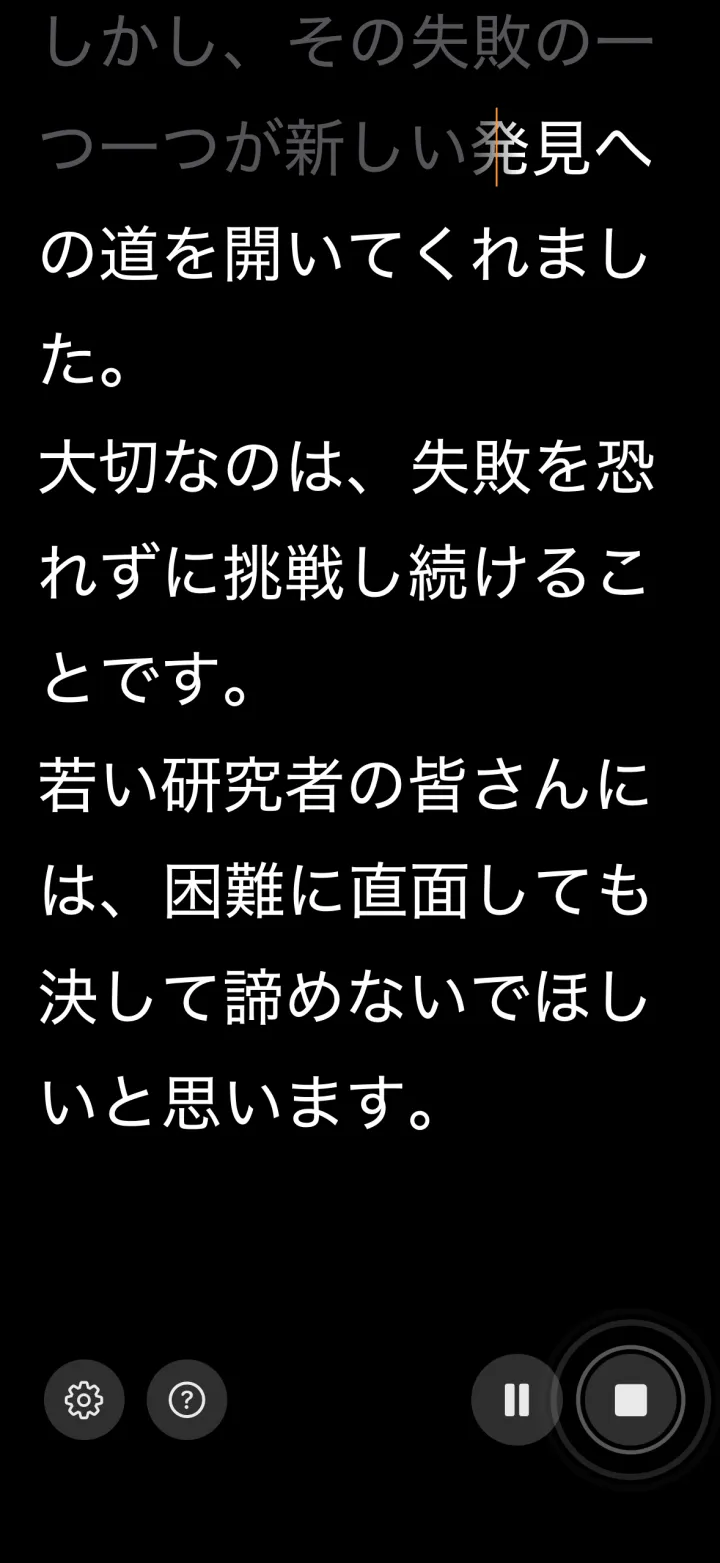
There are two reasons this wins often enough to be worth trying. First, eye line: text on your Mac's screen sits wherever the screen sits, and if that is below or off to the side of your webcam, the camera sees your eyes travelling. A phone can be positioned exactly where you need it, inches from the lens. Second, voice-following scrolling is mature on iOS and iPadOS, while on the Mac itself it takes a dedicated app: Textream does it for free on macOS 15 or later. Voice-following prompters listen to what you are saying and advance the script to match, so a pause or an ad-lib does not desynchronise you from the text.
VoiceScroll works this way on iPhone and iPad, and by default the speech recognition runs on-device, so the script and the microphone audio stay on the phone. Because the prompter is on a separate device from whatever your Mac is doing, the two never compete for the same microphone. Our iPhone and iPad teleprompter guide covers the app side, and the iPad guide goes into stands and positioning if the tablet is what you have.
Do you need mirror mode on a Mac?
Only for a beam-splitter rig. That is the setup where angled glass in front of the lens reflects a screen below it, so you read text that appears to float over the lens while the camera shoots through the glass. The reflection flips the text, which is exactly what mirror mode compensates for.
If you are reading straight off your MacBook screen or an external monitor, you want normal unmirrored text. Turning mirror mode on because it sounds professional is a common first mistake, and it produces text you cannot read.
If the rig holds an iPhone or iPad rather than the Mac, VoiceScroll covers both axes: Mirror horizontally and Mirror vertically, in the settings of the Just read the script mode. They apply in that read-only mode, not when you film through the app's own camera.
Where to put the text on screen
A Mac screen is wide, and a full-width block of text is the fastest way to look like you are reading. Your eyes have to sweep left to right across the whole display, and that movement is visible on camera in a way that vertical scrolling is not.
Keep the prompter window narrow, roughly a third of the screen width, and centre it as close to your webcam as the layout allows. On a MacBook the built-in camera is at the top centre of the display, so a narrow column pinned to the top centre keeps your eye line closest to the lens. If you use an external webcam, put the window directly beneath it. Then raise the font size until you can read the text comfortably from where you actually sit, not from where you are sitting now while you set it up.
Recording on the Mac while you read
If the Mac is both the prompter and the camera, QuickTime Player handles a straight webcam recording and is already installed. Start the recording first, then bring the prompter window forward, so the countdown and your first fumble are not in the take.
One thing to check before you commit to a long take: screen recording and prompter software both compete for your attention in the same visual space, and a tool that listens to your voice, such as Textream, uses the same microphone as the recorder. If you record audio on the Mac with a voice-following prompter running, do a short test take first; if the two get in each other's way, run the prompter on a phone or tablet instead. Two devices, no contention.
When hardware makes sense
Most people do not need a hardware prompter. A phone or tablet near the lens covers YouTube, presentations, and most client-facing video, and the small eye shift it produces goes unnoticed outside broadcast work.
The case for hardware is genuine eye contact, and on a desk the best-known option is the Elgato Prompter, a compact unit with a built-in display that sits in front of a webcam, mirrorless camera, or DSLR. Its Camera Hub software for Mac is free and manages scripts, and its Voice Sync feature scrolls only while you are actually speaking. You are buying the beam splitter and the eye line, not the software.
Which one to pick
- Free, native, and installed on your own Mac: QPrompt.
- Work Mac where you cannot install anything: Teleprompter.com, or Speakflow if you want voice-activated scrolling.
- Want the script to follow your voice on the Mac itself, on macOS 15 or later: Textream.
- Recording yourself and want the script to wait when you pause: a voice-following app on an iPhone or iPad next to the Mac.
- Presenting from slides: QPrompt with its semi-transparent background over your deck.
- Real eye contact at a desk: Elgato Prompter or a beam-splitter rig driven by QPrompt in mirror mode.
On a PC the answer differs in the details, mostly because laptop webcams are not always in the top bezel: see the best free teleprompter for Windows. And if you have not settled whether the script belongs on the Mac at all, start with where to put the prompter, phone or computer.